How to Translate Console Games with Your Phone
A step-by-step guide to translating PS5 game subtitles with your Android phone and showing them on your TV, no computer needed.
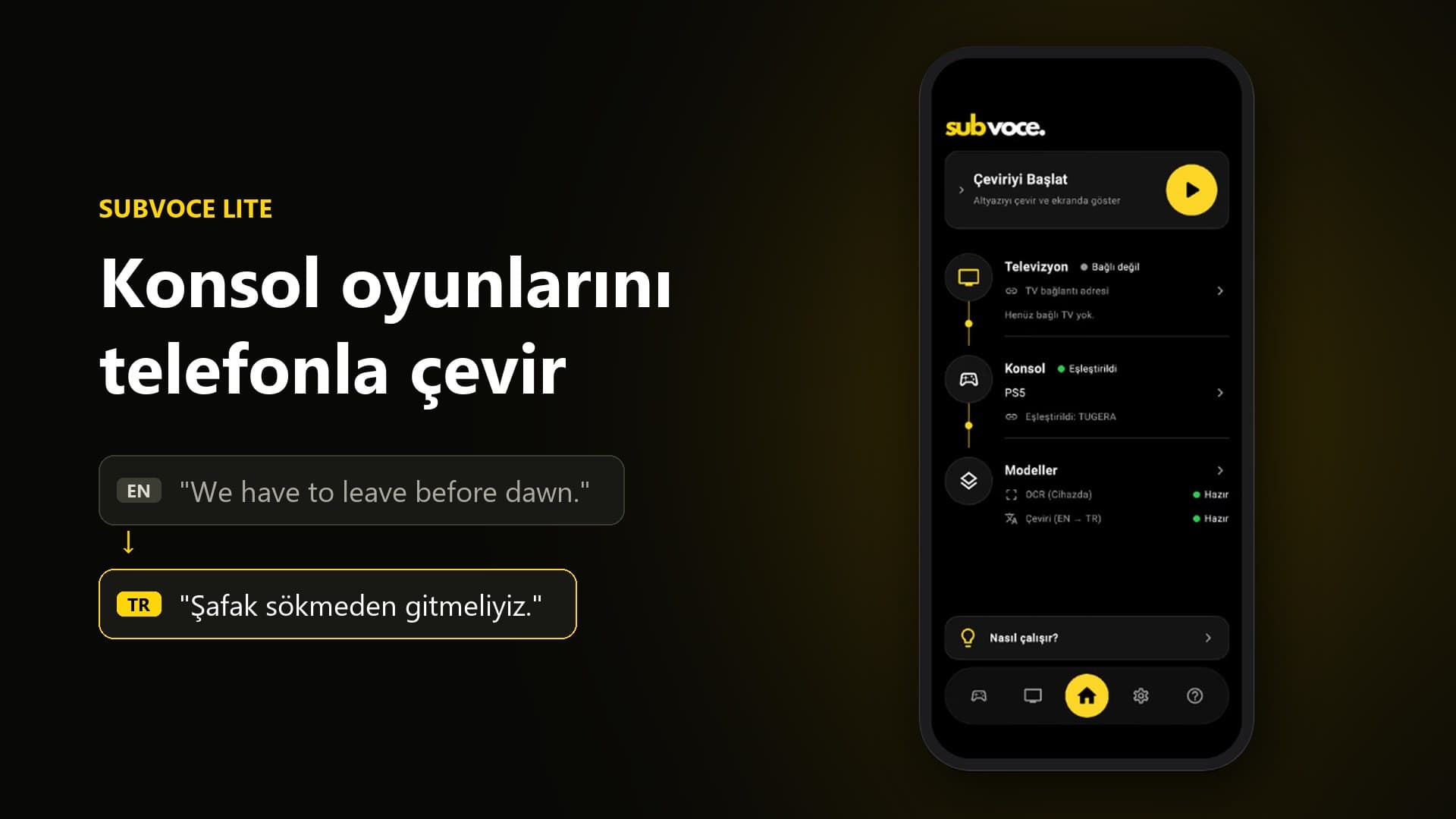
If a console game doesn't offer subtitles in your language, a tool that translates the on-screen English text in real time is the most practical fix. Most of these tools need a computer, though. If you don't have one, or don't want to run a PC next to your console, you can now do the same job with your Android phone. This guide explains how phone-based translation for console games works and how to set it up with Subvoce Lite.
Why pointing your phone camera at the TV doesn't work
The obvious approach is to point your phone's camera at the TV and let a translation app read the subtitles. That's fine for a quick menu, but not for playing a whole game:
- You have to hold the phone or mount it in front of the TV the whole time.
- Reflections, lighting and angle get in the way of reading.
- The screen stays on, so the battery drains fast.
- You read the translation on a small phone screen instead of the game.
Translating with Subvoce Lite
Subvoce Lite never uses the camera. The phone receives the PS5 picture over your Wi-Fi through PlayStation's Remote Play, reads the subtitle area you select, translates the text into your language and sends it to the Subvoce app on your TV.
- Put the phone down: once translation starts, you can turn the screen off or switch apps; translation keeps running in the background.
- Battery friendly: built to run efficiently with the screen off.
- Leaves the game alone: no game files are changed, no patches or jailbreaks.
- Translation options: text is read on the phone, and you can choose between 2 local and 1 online translation model.
What you need
| Device | Requirement |
|---|---|
| Phone | Android 10 or later, 64-bit, at least 4 GB RAM and 300 MB free storage |
| Console | PS5 with Remote Play enabled |
| TV | A TV with the Subvoce app installed |
| Network | All three on the same home network, preferably 5 GHz Wi-Fi |
Step-by-step setup
- Connect your phone, PS5 and TV to the same Wi-Fi network.
- Install Subvoce Lite on your phone and the Subvoce TV app on your TV.
- Open Subvoce on your TV and enter the address it shows in the TV section of Subvoce Lite.
- In the Console section, enter the PSN Account ID of a secondary account added to your PS5.
- On your PS5, go to Settings → System → Remote Play, turn on “Enable Remote Play” and select Link Device. An 8-digit code appears.
- In Subvoce Lite, tap Start Translation and enter that code.
- Once connected, press the PS button on your DualSense and choose your own account on the user selection screen.
- Select the subtitle area on your phone. Translated subtitles now appear on your TV, and you can put the phone aside.
Subvoce for Windows or Subvoce Lite?
If you have a computer, we recommend Subvoce for Windows. If you don't, or you'd rather use just your phone at the console, Subvoce Lite is the right choice. The two apps are licensed separately: a Windows license key doesn't work in Lite, and a Lite key doesn't work in the Windows app.
Summary
You don't need to point your phone at the TV to translate console games. Subvoce Lite takes the PS5 picture through Remote Play, translates the subtitles and shows them on your TV, so you can put the phone down and focus on the game. See the Subvoce Lite page for details and downloads.
Understand the subtitle. Keep playing.
Subvoce translates the English subtitles on your screen locally on your PC and shows the translation on your PC or your TV.
More articles
Guides
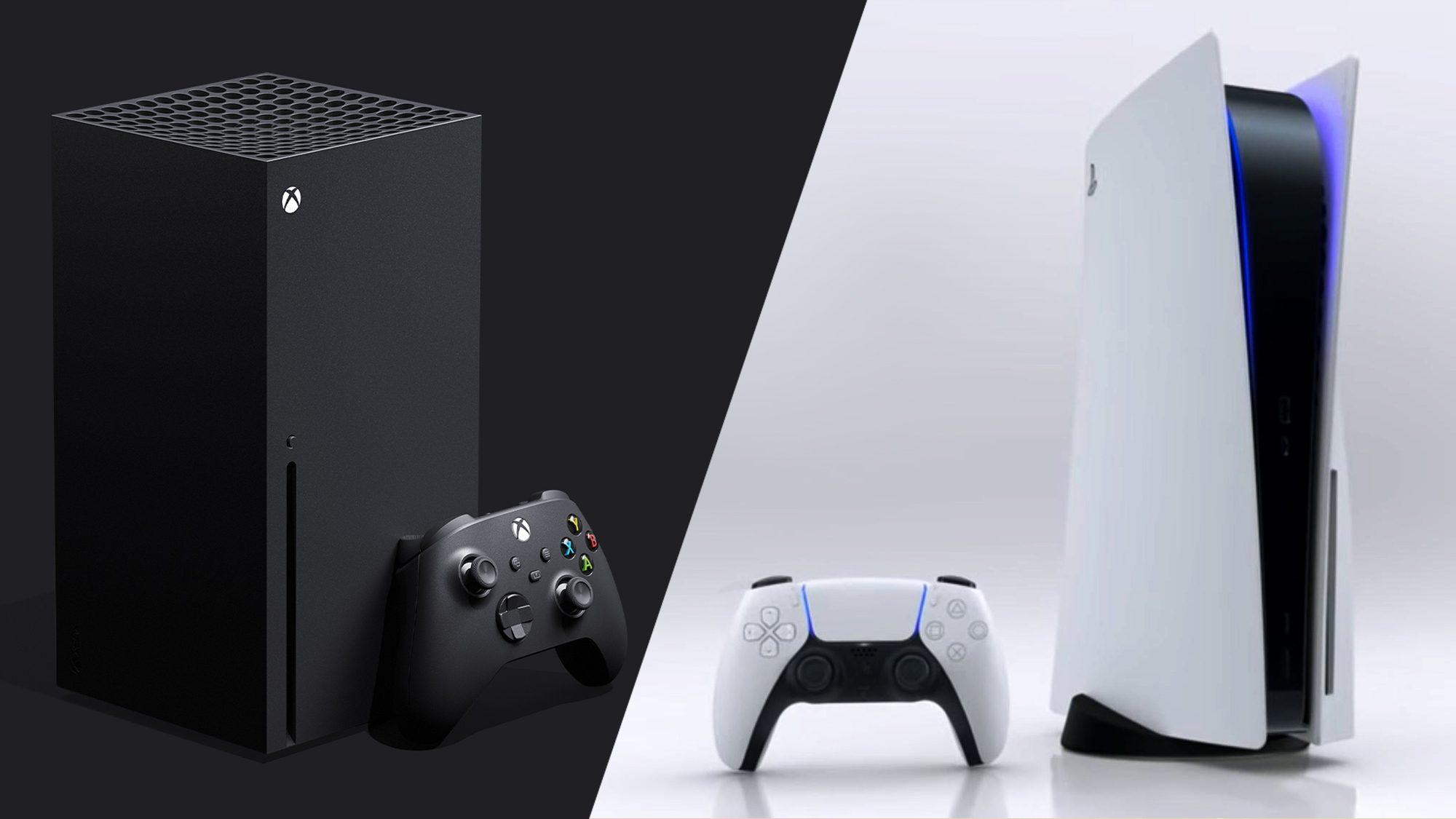
PS5 and Xbox Subtitle Language Guide
Learn how to check language options in PS5 and Xbox games, and what to do when your language isn’t supported.

Game guides
GTA 6 Subtitles in Your Language: What Are Your Options?
How to check GTA 6’s language options and what translation alternatives exist on console.