New · For Android phones

Subvoce Lite

Your phone translates. You play.

What Subvoce does on Windows and Mac, your Android phone now does too: it reads the subtitles on your console screen, translates them into your language and sends them to your TV.

  • No camera translation
  • Lock it or switch apps
  • Battery friendly
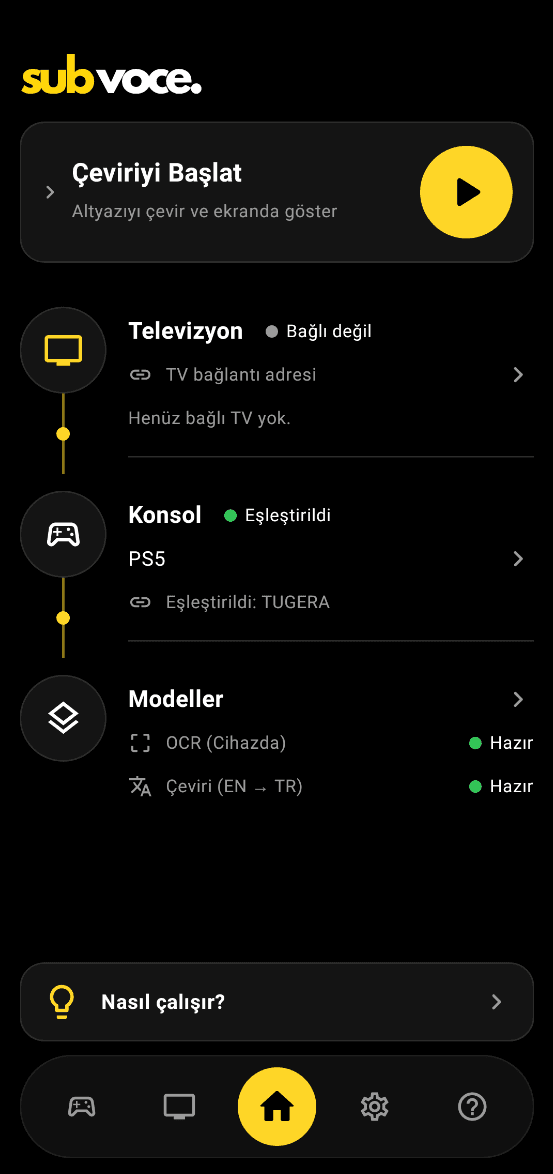
Subvoce Lite screenshot 1

Start it. Put the phone down.

No need to point your phone at the screen, hold it or keep it on.

  • No camera translation

    Subvoce Lite never uses the camera. You don’t point your phone at the TV or mount it anywhere.

  • Lock it or switch apps

    Once translation starts, you can turn the phone’s screen off or use any other app. Translation keeps running in the background.

  • Battery friendly

    Built to run efficiently in the background with the screen off, so even long gaming sessions go easy on your battery.

How it works

Ready in three steps.

  1. 1

    Install the apps

    Install Subvoce Lite on your phone and the Subvoce TV app on your TV.

  2. 2

    Start translating

    Open Subvoce Lite, pick your language and start translation.

  3. 3

    Put the phone aside

    Turn the screen off or switch to other apps; translated subtitles keep appearing on your TV.

Download

Install Subvoce Lite on your phone and Subvoce on your TV.

Using it on a computer? Download Subvoce for Windows & Mac

  • Subvoce Lite

    An Android phone alternative for those without a computer. If you have one, we recommend Subvoce for Windows & Mac.

    Download

    v1.0 · 189.9 MB

  • Subvoce TV

    Shows the translated subtitles on your TV.

    DownloadDownload via Google Drive

    33.3 MB

Recommended system requirements

  • Android 10 or later
  • 64-bit phone (most phones from the last 5–6 years)
  • 4 GB RAM or more
  • At least 300 MB of free storage
  • Connected to the same home network as the console, preferably 5 GHz Wi-Fi

How does Subvoce Lite work?

  1. Connect your phone, PS5 and TV to the same Wi-Fi network.

  2. Open the Subvoce app on your TV and enter the address in the TV tab.

  3. In the Console tab, enter the PSN Account ID of a secondary account added to your PS5.

  4. On your PS5, go to Settings → System → Remote Play, turn on “Enable Remote Play”, then select “Link Device”. An 8-digit pairing code will appear on screen.

  5. In the app, tap “Start Translation” and enter the 8-digit code shown on your PS5.

  6. Once connected, press the PS button on your DualSense and choose your own account on the user selection screen.

  7. Select the subtitle area on your phone; translated subtitles appear on your TV.

One plan. Monthly.

Subvoce Lite · 1 Month

$2.89 / month

  • Unlimited translation
  • No tokens, no credits
  • 2 local and 1 online translation model
  • User-friendly interface

A subscription that renews every month. Payments through Polar.

Subscribe

Subvoce Lite is licensed separately: your Subvoce for Windows & Mac license key doesn’t work in Subvoce Lite, and a Subvoce Lite key doesn’t work in the Windows or Mac app.

We use necessary cookies to run this site. With your permission we may also use optional cookies. You can change your choice at any time. Cookie PolicyKVKK Notice