How to Change Subtitle Language on PS5
Check PS5 subtitle settings and discover alternatives for games that don’t support your language.

Playing a PS5 game with subtitles in your language is usually a matter of a few settings. This short guide walks through the system language, in-game subtitle settings and the PS5 accessibility options. At the end you’ll also find what to do when a game doesn’t support your language.
1. Set the PS5 system language
- Open Settings (the gear icon) at the top right of the home screen.
- Go to System → Language → System Language.
- Choose your language.
Games that take their language from the system will now start in that language. If the game is already open, close it completely and restart it.
2. Choose the subtitle language in-game
Some games ignore the system language and let you choose in their own menu:
- Open Options from the game’s main menu.
- Find the Language, Subtitles or Accessibility tab.
- Turn subtitles on and choose your language as the text language.
3. PS5 accessibility subtitle settings
Under Settings → Accessibility you can set default subtitle preferences for supported games and apps. This helps subtitles turn on automatically in supported games, but not every game uses this setting.
4. Check whether the game supports your language
If you still can’t find your language after the steps above, the game most likely doesn’t support it. You can confirm this in the Screen languages info on the PlayStation Store product page.
5. Not supported? Play with real-time translation
Game files can’t be changed on PS5, so translation patches can’t be installed. As an alternative, you can use Subvoce, which reads the game’s English subtitles from the screen and translates them:
- The PS5 picture is streamed to your PC with PS Remote Play.
- Subvoce reads the subtitles and translates them locally on your PC.
- The translation is shown on the TV on the same network, while you keep playing on the TV.
For ways to get the picture onto your PC, read our guide on getting your PS5 picture on a PC.
Understand the subtitle. Keep playing.
Subvoce translates the English subtitles on your screen locally on your PC and shows the translation on your PC or your TV.
More articles
Guides
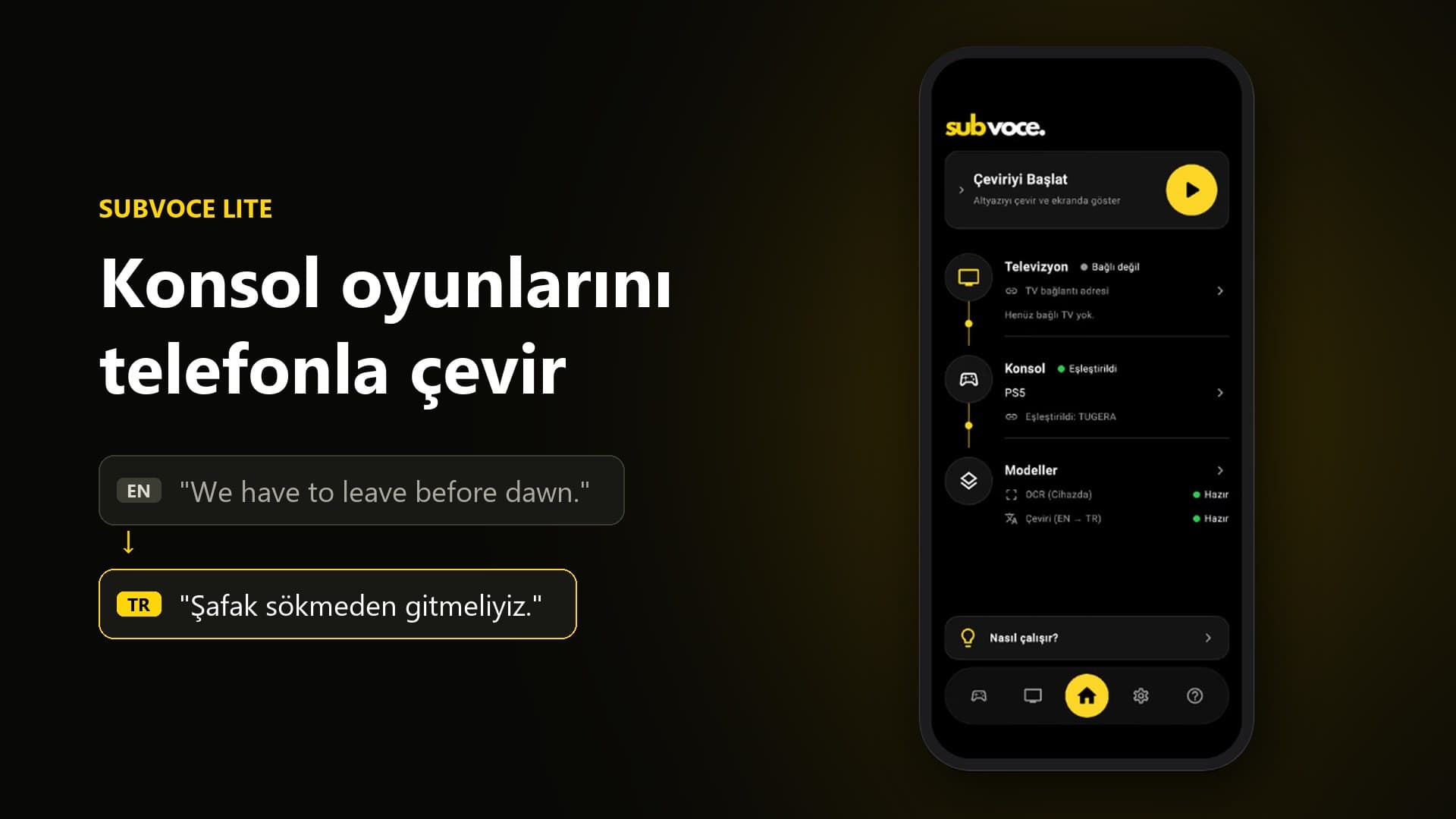
How to Translate Console Games with Your Phone
A step-by-step guide to translating PS5 game subtitles with your Android phone and showing them on your TV, no computer needed.

Guides
PS5 and Xbox Subtitle Language Guide
Learn how to check language options in PS5 and Xbox games, and what to do when your language isn’t supported.